Classroom Seating Plan Generator

Build a classroom seating chart from your roster and the desks you use. Start with rows, pods, U-shape, or horseshoe, then place students and print a room reference.

Classroom Seating Plan Generator: From a headcount to a usable layout

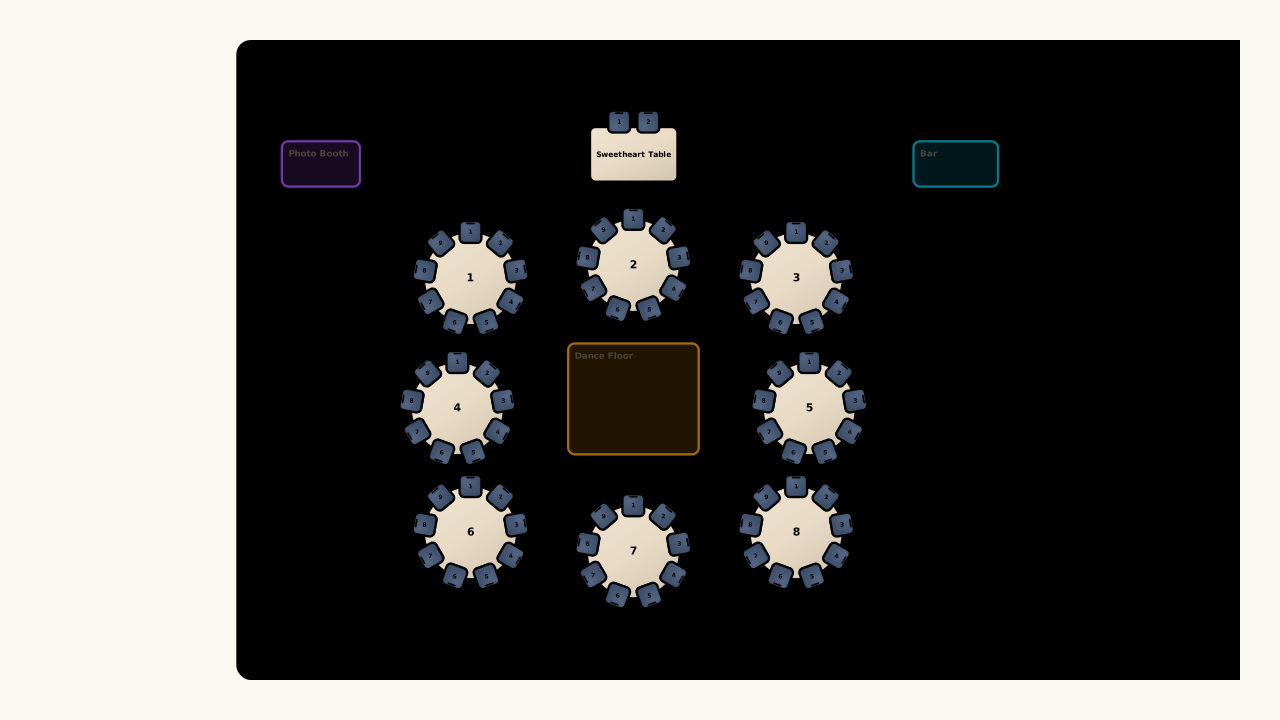
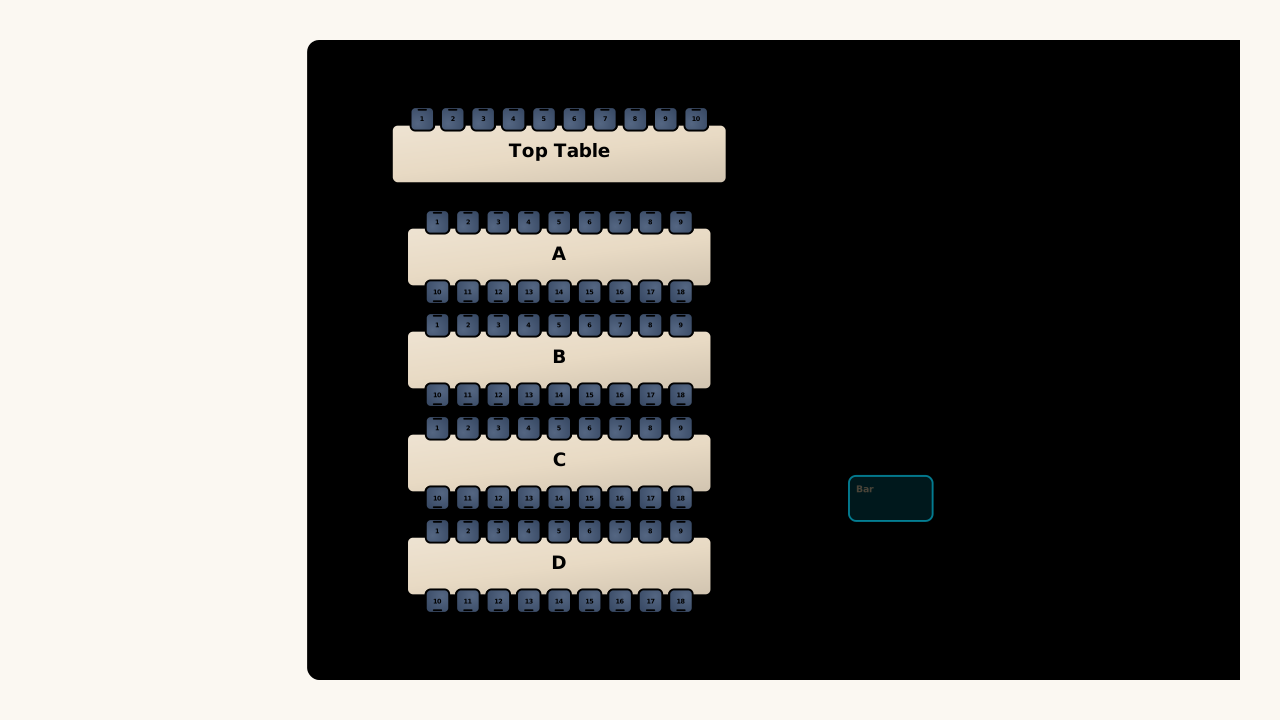
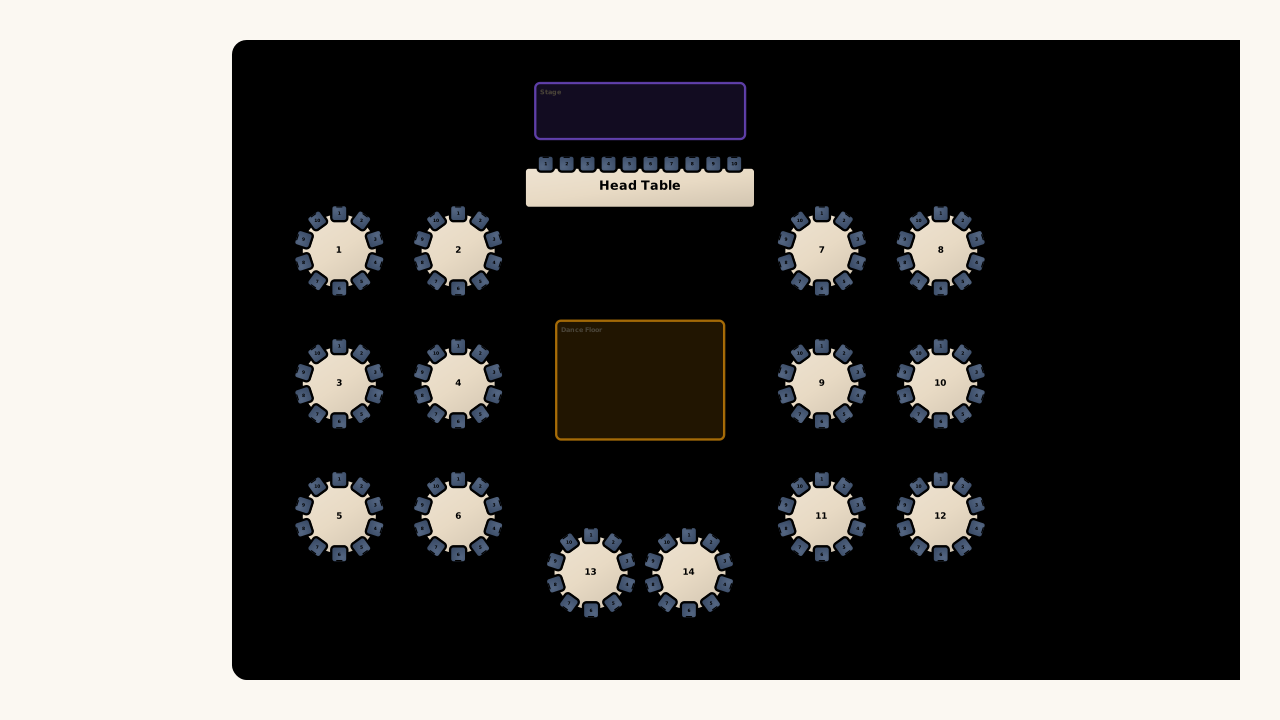
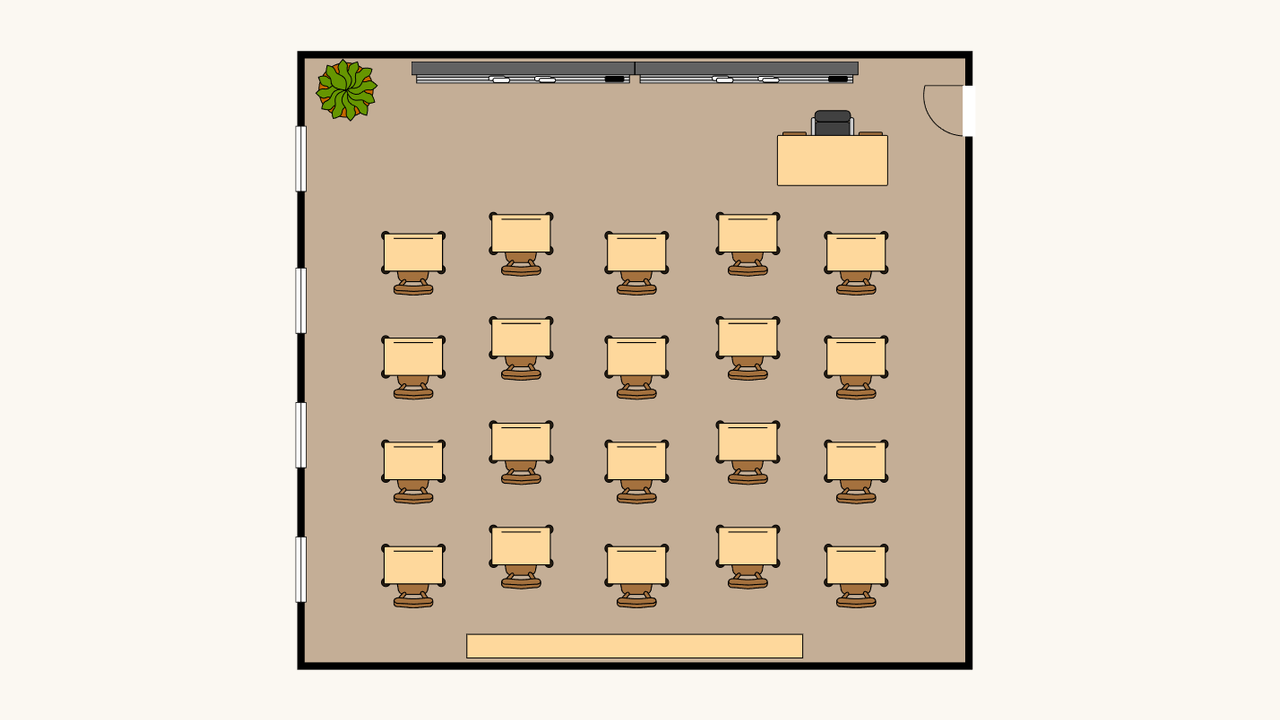
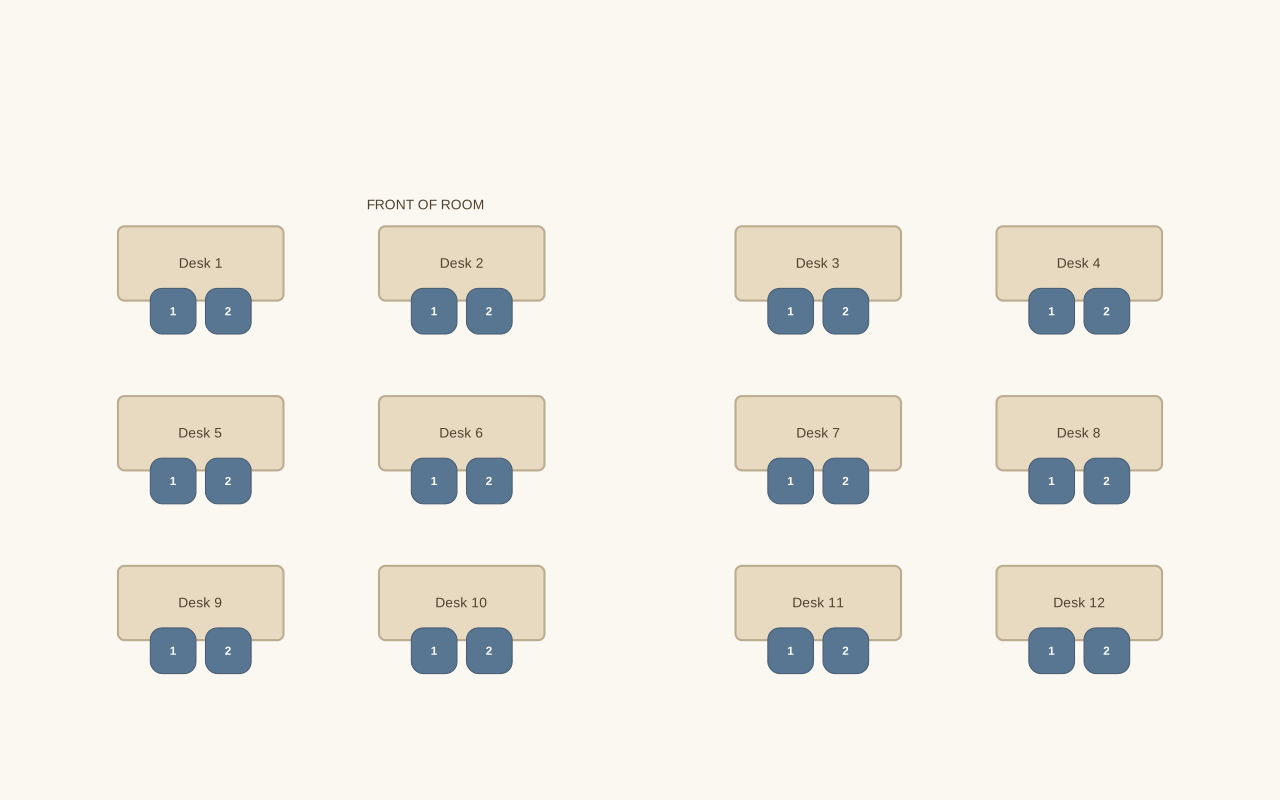
See how the Classroom Seating Plan Generator turns the displayed setup into its matching layout. Compare the requested people count and furniture with the available seats before adding names or making changes.

Your starting setup

People
24
Furniture
Classroom rows
Seats per table or desk
2
Columns
4

Compare the layout

Example layout generated from the displayed settings. Guest names are added separately after you review the available seats.
The resulting layout: 12 tables or desks · 24 available seatsExample layout generated from the displayed settings. Guest names are added separately after you review the available seats.

From your roster to the room

Open classroom seating plan generator

Set up the desks

Choose a classroom layout and enter the number of students. Adjust desks, columns, and the front marker so the starting plan reflects your room.

Add students and rules

Import or paste your roster, then add the seating relationships you need. Place selected students yourself and preserve those seats during automatic arrangement.

Review and print

Check each assignment and the remaining unseated students. Edit the chart as needed, then choose a chart output and inspect it before printing.

A classroom seating plan generator you can revise

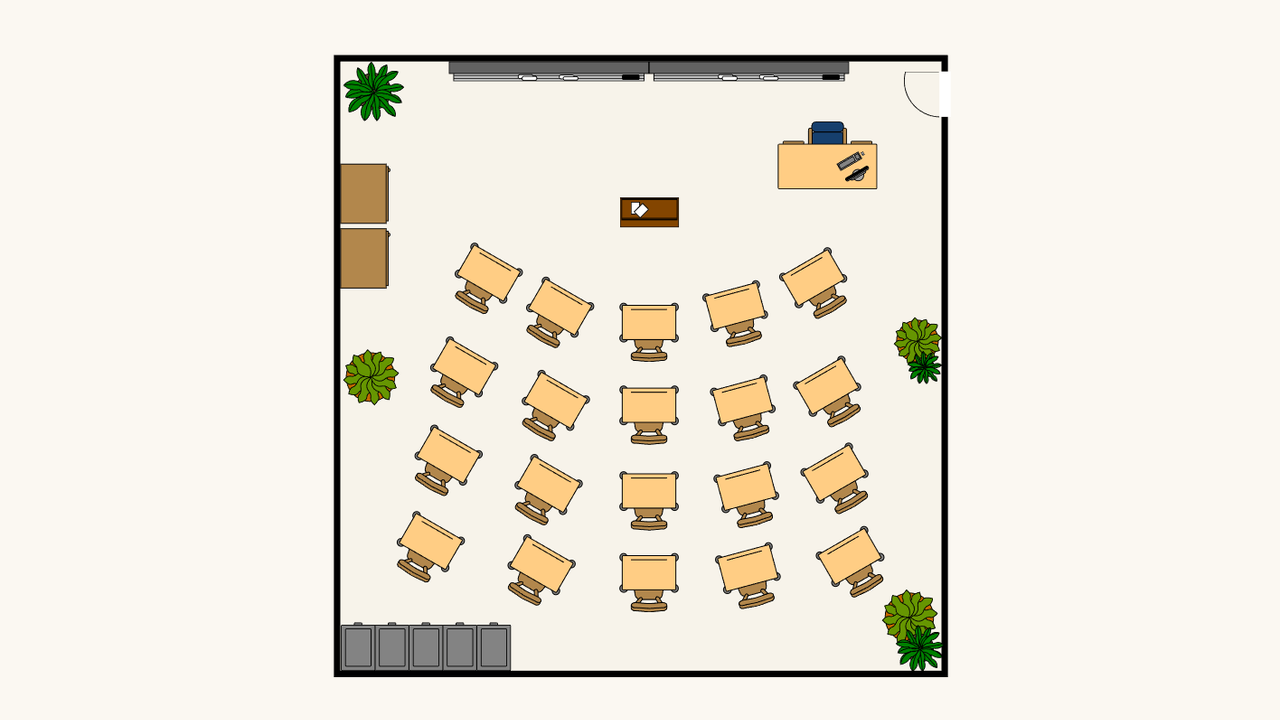
Classroom seating arrangement with individual desks turned toward the teaching area

Start with four desk arrangements

Choose rows, pods, U-shaped desks, or a horseshoe in the classroom seating plan generator. Set the class size and seats per desk, then move or rotate furniture to match the arrangement you want students to use.

Open classroom seating plan generator
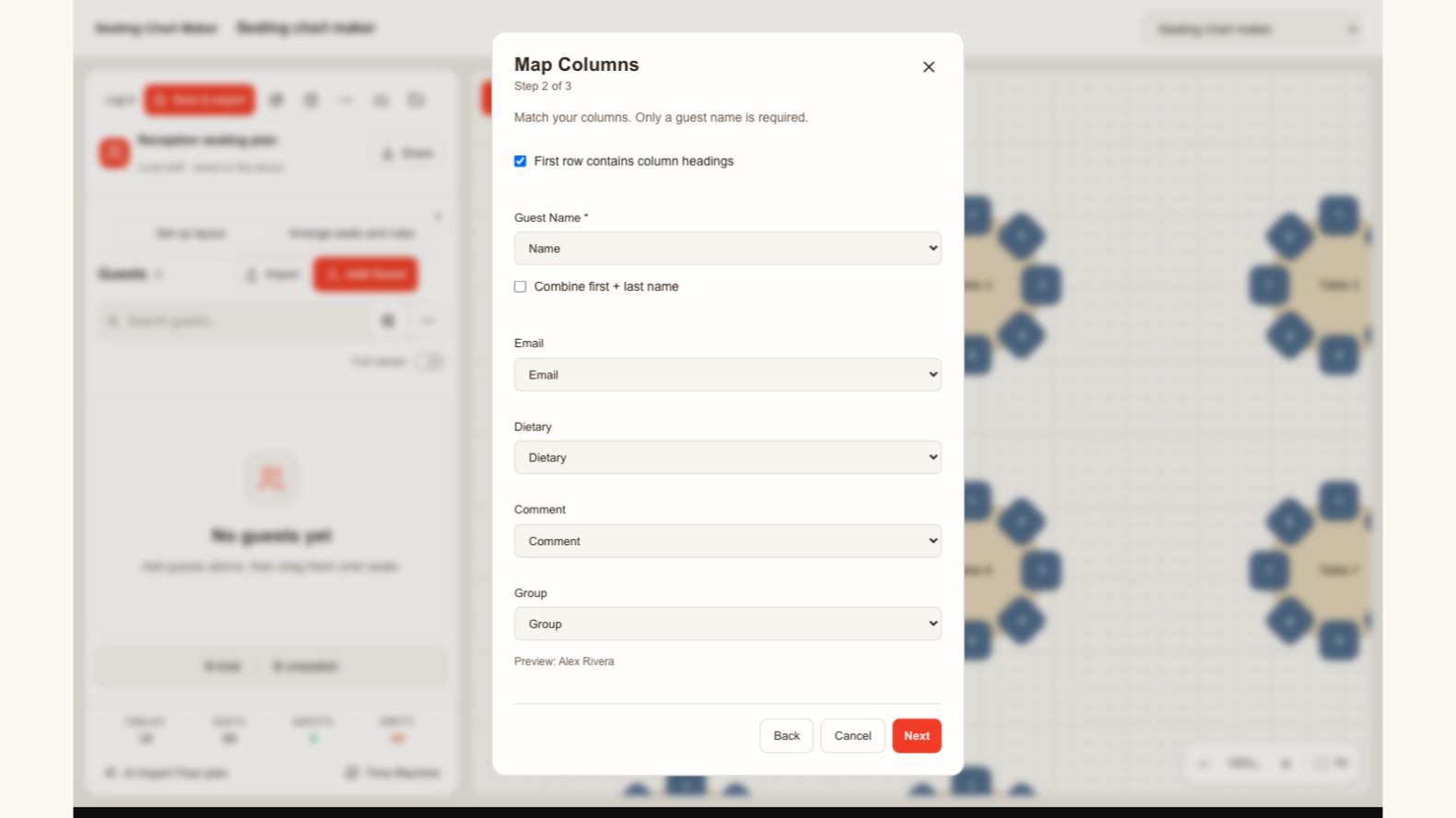
Actual guest import dialog mapping name, email, dietary information, notes and groups

Match your list to the right fields

Bring your student roster into the classroom seating plan generator from a spreadsheet. Review the name, group, dietary, and note columns before importing, so each person keeps the details you need when assigning seats and checking the final plan.

Open classroom seating plan generator
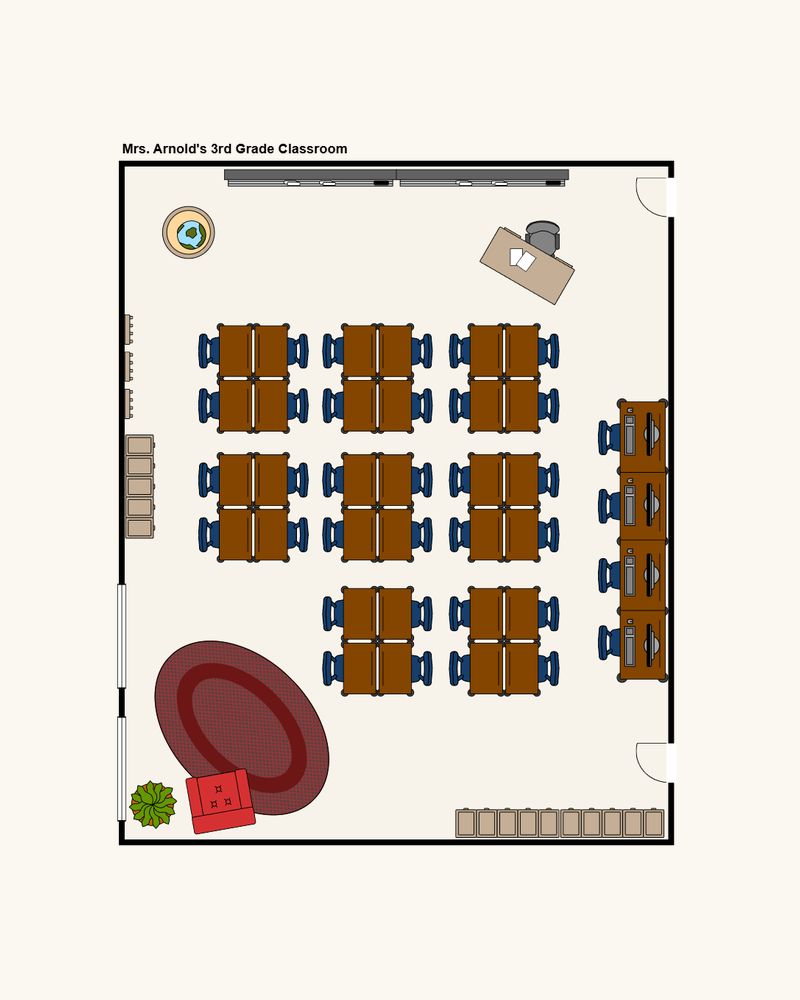
Classroom floor layout with grouped student tables and a separate teaching area

Arrange students around explicit rules

Keep selected students together or apart in the classroom seating plan generator. Review the suggested assignments before applying them, then make individual changes when your teaching plan calls for a different arrangement.

Open classroom seating plan generator
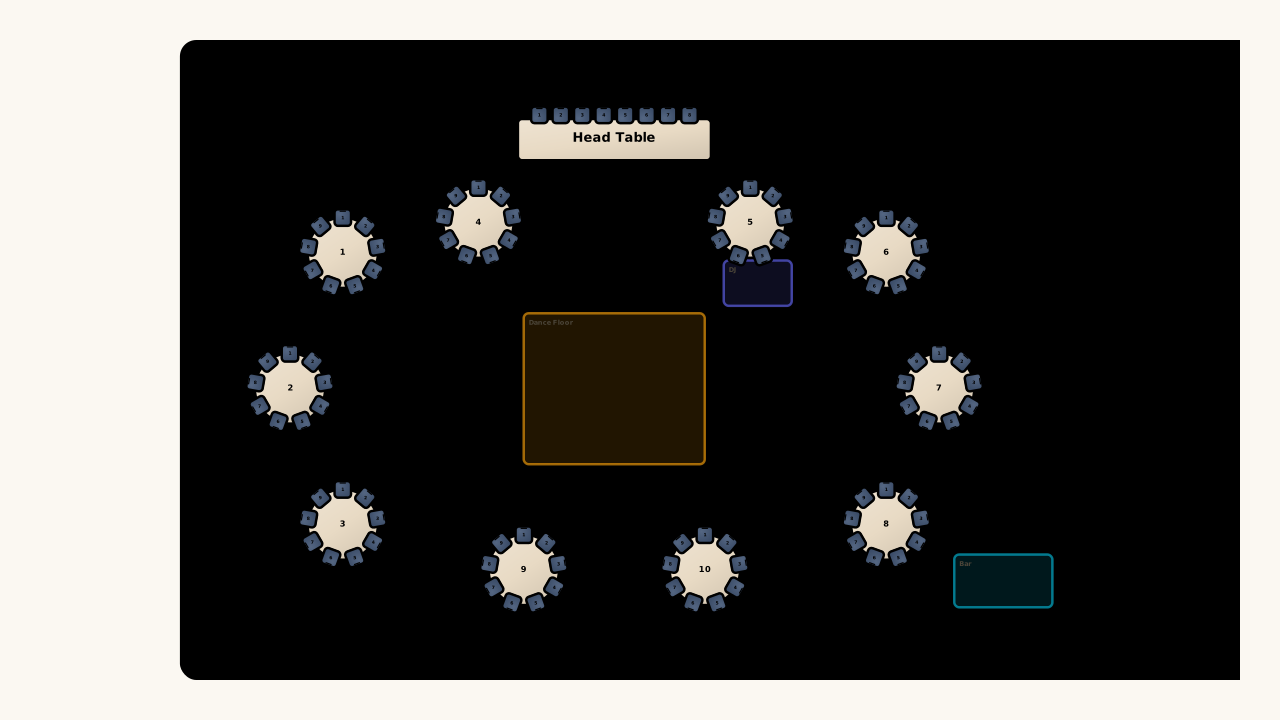
More context for everyday seating choices

An editable classroom seating chart puts the roster beside the room layout, helping you make deliberate desk assignments and revisit them when the class changes.

Make the front clear

Use the front marker when generating desks, giving the room chart a consistent reference point for reviewing student positions.

Protect a chosen place

Assign a student manually and preserve current seats during arrangement, keeping that decision while you place the rest of the class.

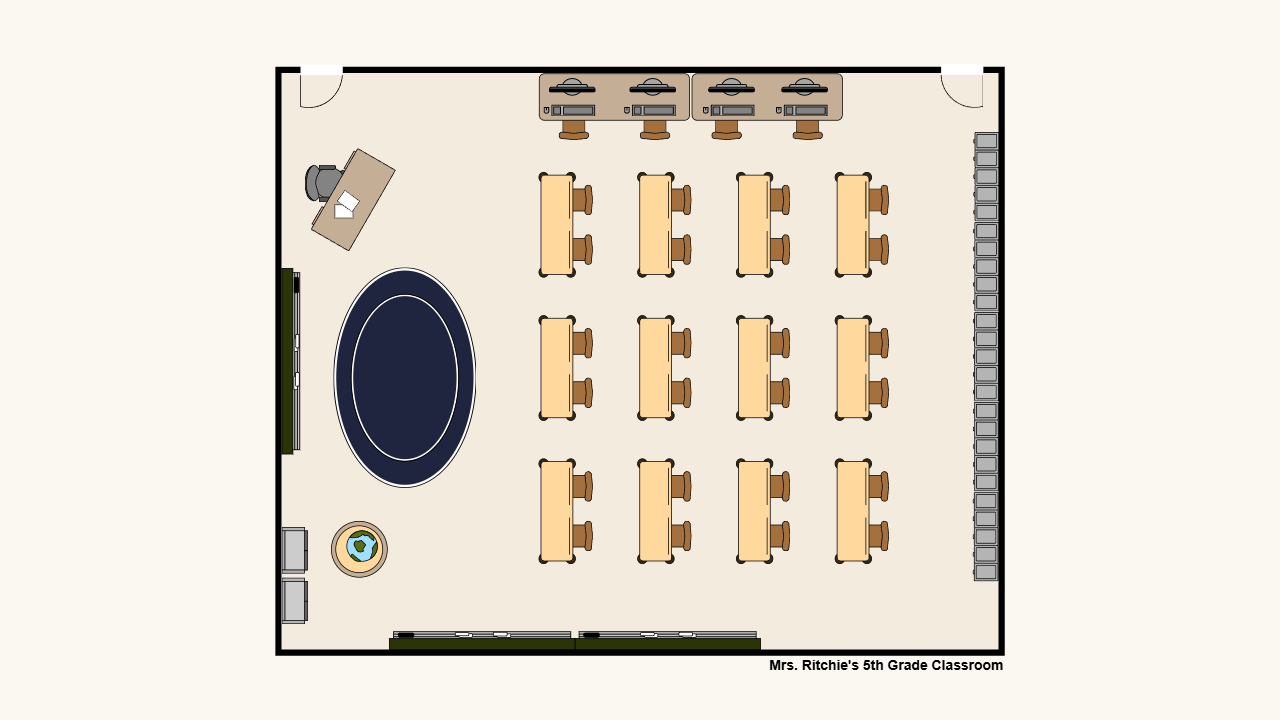
Classroom plan with grouped student tables, storage and a separate reading area

Review pairs before printing

See which people share a desk or pod after arrangement, then make the adjustments that your knowledge of the class calls for.

Keep a recoverable version

Download a plan backup before a substantial rotation, so you can reopen that version if you want to compare or return.

Classroom Seating Plan Generator questions

Seating Chart Maker logo

Open your classroom seating plan generator

Choose your desk layout, add the roster, and create an editable classroom plan you can review and print.

Open classroom seating plan generator